
Before you start
Before creating your first QR code, you will need to think about what you want your user experience to look like.
What do you want to create?
A QR code that takes people to a single destination
A QR code that opens a landing page with multiple links or resources
You will also need to decide which web address you want your QR code to display when its scanned. Do you want to show your own brand domain (id.yourbrand.com) or a GS1 UK domain (id.gs1uk.org)?
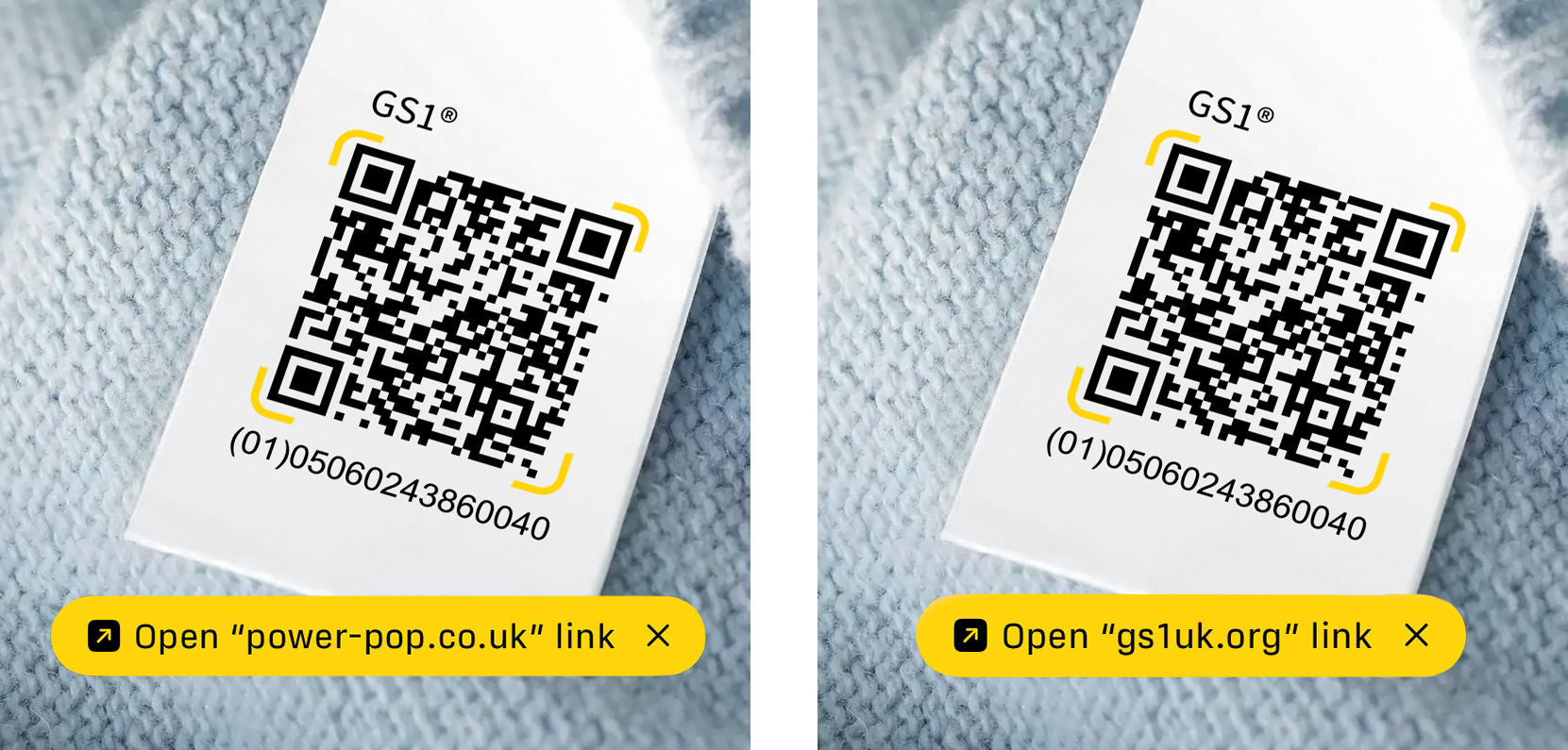
For more information on setting up your own brand domain visit the article below.
Using your own brand domain?
If you are using your own brand domain, add it in Manage profile under Domains in My Numberbank before setting up your QR code. If you are using a GS1 UK domain for your QR code, you can skip this.
Setting up a QR code with a single destination
Login to My Numberbank and navigate to the GTIN you would like to create a QR from, or select the next number. Select Create + under Barcode & QR code.
Select QR code powered by GS1. Choose the domain for your QR code. This is the address users will see when they scan your QR code. You can use your own brand domain, or the GS1 UK domain.
Set your error correction level - this controls how much damage or obstruction the QR code can tolerate and still scan correctly. Low error correction level is typically used for screens or controlled environments where damage to the code is less likely. Medium error correction is the best balance of reliability and scannability. Quartlile or High error correction can withstand more damage but the QR itself will need to be larger.
Select whether you will need to show the GTIN below your QR code. See this article for advice on whether it is required or not.
Select whether you would like to show the GS1 trademark above your QR code.
Tip: The GS1 trademark is useful as it shows your QR code is different from any other QR codes, can connect to rich digital content and can be scanned at point-of-sale (POS).
Select your preferred image format and quality level for your QR download.
Link to your chosen webpage and generate your QR code. Scan the code to check your link is functioning as expected.
Setting up a QR code with a landing page and multiple destinations
Note: QR Premium is required to set up a QR code with a landing page and multiple destinations.
Login to My Numberbank and navigate to the GTIN you would like to create a QR from, or select the next number. Select Create + under Barcode & QR code.
Select QR code powered by GS1. Choose the domain for your QR code. This is the address users will see when they scan your QR code. You can use your own brand domain, or the GS1 UK domain.
Set your error correction level - this controls how much damage or obstruction the QR code can tolerate and still scan correctly. Low error correction level is typically used for screens or controlled environments where damage to the code is less likely. Medium error correction is the best balance of reliability and scannability. Quartlile or High error correction can withstand more damage but the QR itself will need to be larger.
Select whether you will need to show the GTIN below your QR code, and whether you would like to show the GS1 trademark above your QR code.
See this article for advice on whether it is required to display your GTIN. Do I need to have the website or GTIN written underneath a QR code?
Tip: The GS1 trademark is useful as it shows your QR code is different from any other QR codes, can connect to rich digital content and can be scanned at point-of-sale (POS).
Select your preferred image format and quality level for your QR download.
Select Yes to create a landing page and add your key benefits text. This is a short description that will be displayed beneath your product image.
Add your product image and company or brand logo web links. Click the image icon to preview these.
You can now scan your QR code to view your landing page. Click continue to add your links.
From your landing page management screen you can add and edit your landing page as well as your links.
To add a new link, select the link type that closest describes the link you would like to add.
Add the title for your web link as well as the web address you want to link to. Select the language for your link and whether you would like to make this link active.
You can now scan your QR code at the top of the screen to preview your landing page. Add and update your links and landing page until you are happy with the final result.
A visual guide to your landing page
For more information on the landing page, see the article below.