
Why should I set up a brand domain?
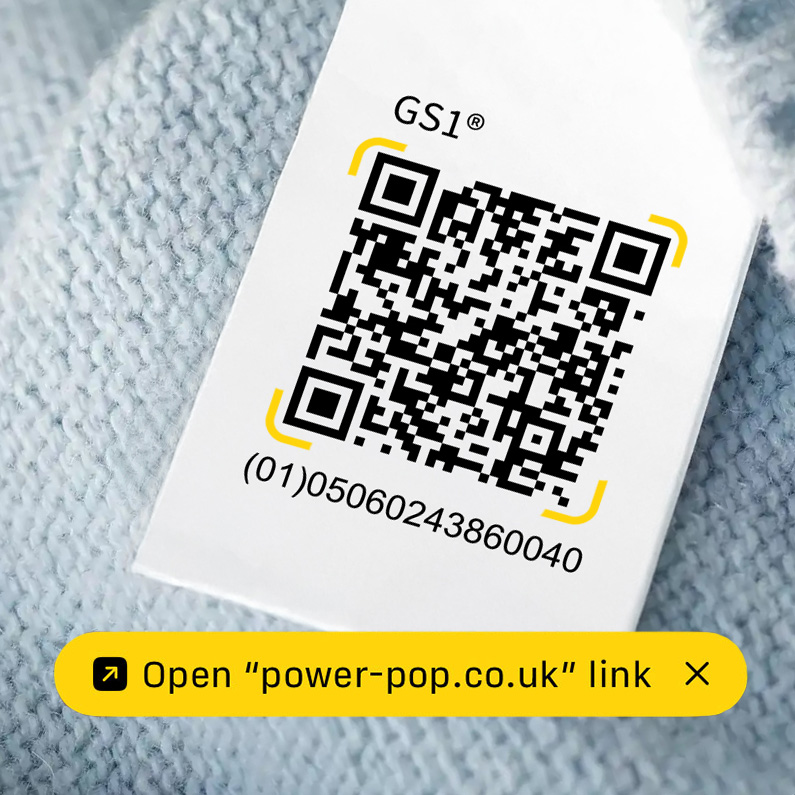
Using your own brand domain helps build trust and recognition. When you set up a subdomain redirect, every QR code powered by GS1 scan takes customers straight to your trustworthy, own brand destination. This gives consumers confidence that they’re interacting directly with your company.
This approach is ideal for brands that want their name to appear immediately after a QR code scan and ensure future digital experiences remain connected to the same, reliable domain.
Using a brand domain
Using a GS1 UK domain
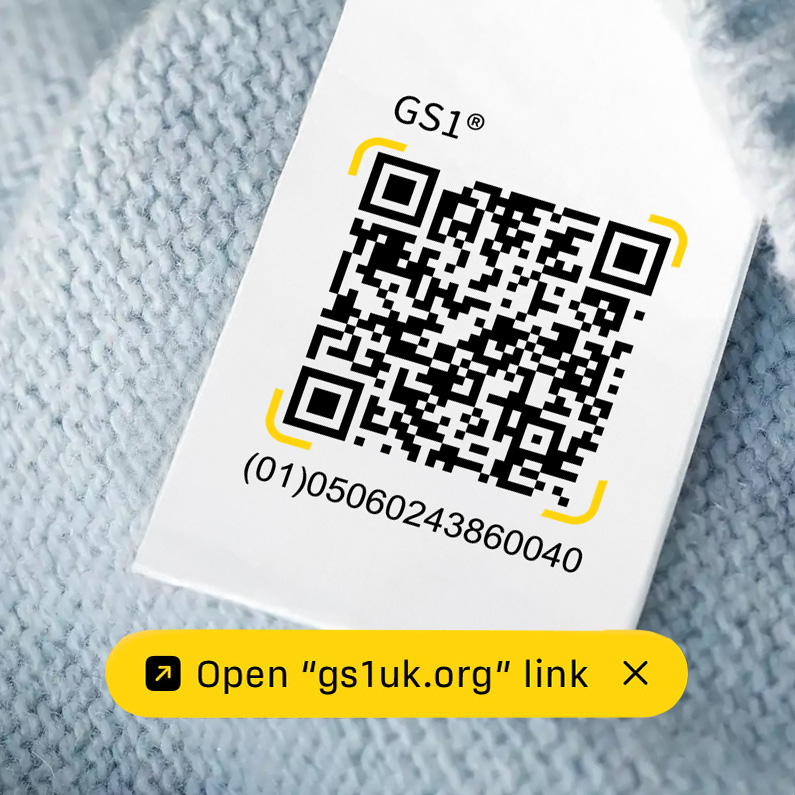
A simple approach to get started would be to use the GS1 UK domain. However, if you wanted to change to your own brand domain in future, you would need to update the QRs on your products.
How do I set up a brand domain?
To use your own brand domain with QR codes powered by GS1, you'll need access to your domain management system. This is the control panel for your domain, where you control key settings like domain name systems (DNS) records and redirects. While interfaces and terminology can vary slightly between providers, the steps are largely the same.
Here is a generalised approach:
Log in to your domain account. Sign in to your domain provider’s account (such as GoDaddy, Reg123, or Namecheap). Once you're in, head over to your domain’s control panel to access all your settings.
If you manage more than one domain, simply choose the one you want customers to view when they scan your QR code powered by GS1. This ensures they’re taken straight to the domain that best represents your brand.
Go to Domain Name management. Head to the area where you manage your domain settings. This might be called Advanced DNS, DNS Management, DNS Settings, Domain Settings, or Name Servers—the name can vary depending on your provider.
Add a New CNAME (Canonical Name) record. This simply tells one domain name to point to another. Select CNAME as the record type.
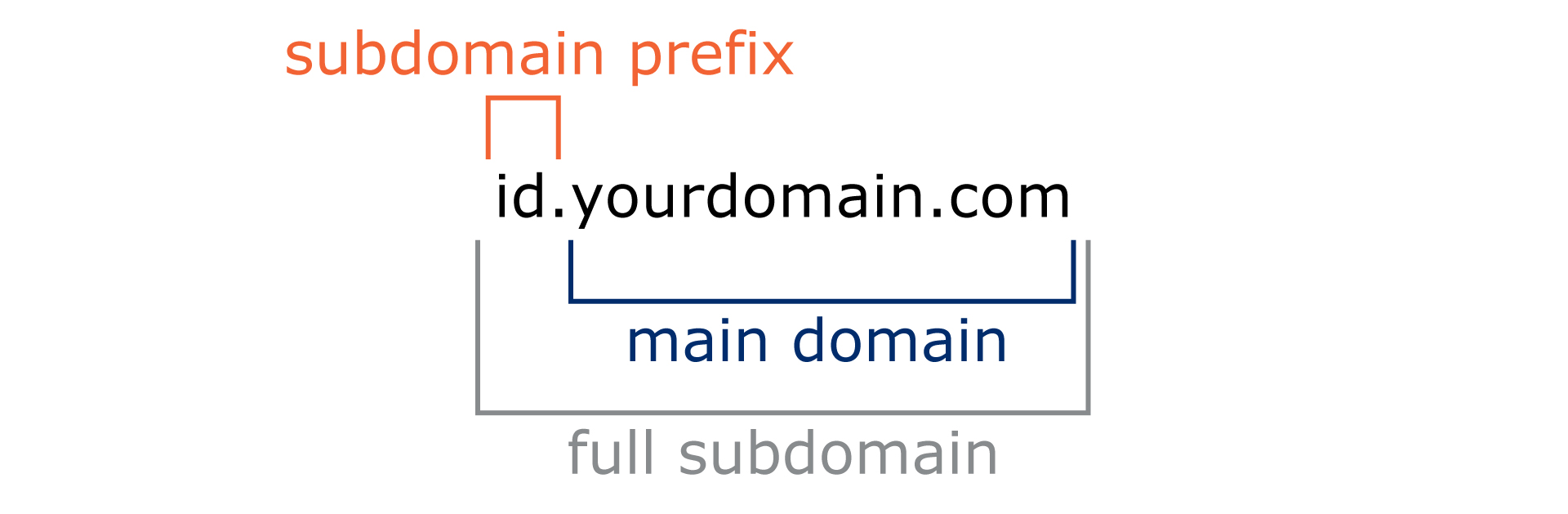
Name/host: Choose the subdomain prefix you want to highlight as part of your brand experience. While you can use any prefix, we recommend “id”—it signals that this subdomain is the home of your product identifiers. For example: id.yourdomain.com.
Using a dedicated subdomain gives you greater flexibility in managing product identity, allowing different teams to control their areas without affecting your main site. It also keeps your scan analytics clean and focused, helping you clearly see when, where and how often your QR codes powered by GS1 are used, without mixing this data with general website traffic.
Value: Enter digitallink.gs1uk.org as the CNAME value. This connects your subdomain to My Numberbank, ensuring every GS1‑powered QR code scan leads customers to your trusted, branded destination.
TTL: Leave the TTL (Time to Live) set to its default option (e.g., Automatic). This helps your DNS update smoothly behind the scenes—no extra configuration needed.
Click Save or Add record to confirm and create your new CNAME record.
Your saved record should look something like this:
| Type | Host | Value | TTL |
|---|---|---|---|
| CNAME Record | "id" | “digitallink.gs1uk.org” | Automatic |
Make sure the Value shows the digital link and not your own website:
digitallink.gs1uk.org

mybrand.com
Don’t worry if you’re not familiar with these settings — the videos below walk through the setup using two common domain providers. While menus and labels can vary between providers, the core steps you need to follow are broadly the same.
Video: Set up a brand domain
Link your brand domain to My Numberbank
Once the CNAME record has been added via your domain management service, it’s important to add this to My Numberbank and verify that it’s been implemented correctly.
Go to My Numberbank. Navigate to Domains by either:
- Going to Manage profile and select Domains. Choose Add a new domain +
or
- Click Create + under Barcode & QR code on your available GTINs. Select QR code powered by GS1 and click Go to profile settings.
Enter your subdomain. Type the full subdomain you created, which includes both the subdomain prefix and your main domain name.
Click “Submit and continue”. This saves the full subdomain you’ve entered and moves you to the next step.
Click “Close and view domain status”. This takes you to the domain status page, where you can check whether your subdomain and DNS setup have been configured correctly.
Video: Link your brand domain to My Numberbank
The below video shows how to link your brand domain to My Numberbank.
My Numberbank domain management status
| Domain status | Meaning | Action required |
|---|---|---|
| Connected | Your CNAME redirect is working correctly. | Nothing more to do - setup is complete. |
| Pending DNS setup | The domain is not yet ready. DNS changes may still be propagating (24-48 hours). | Click Retry at any time to check again. |
| Needs attention | A problem was found in your domain setup. | Review and correct the DNS settings you entered or delete record and start again. |
Troubleshooting tips
Propagation time: DNS updates can take up to 48 hours to go through. If the redirect doesn’t work right away, give it some time and try again. Just log in to My Numberbank, go to Manage profile → Domains, and click Retry connection.
CNAME value: Doublecheck that you’ve entered the exact CNAME value, digitallink.gs1uk.org in your domain management system. Even a small typo can prevent the redirect from working.